 LeSearch AI
Getting started with LeSearch AI
LeSearch AI puts every machine you own — and every coding agent running on it — on your iPhone and Apple Watch. When Claude Code, Codex, cursor-agent or Antigravity stops on a question, your phone (and wrist) buzzes; you read the prompt and tap Continue, pick a menu option, or type back. When you need the machine itself, you get its screen, its keyboard and a real terminal, from the phone.
This page takes you from nothing to that first buzz. It was written to be followed by someone who has never seen the product; every command in it is copy-pasteable and every screenshot is from the current build (0.8.0). If a step does not match what you see, that is a bug — report it from the app.
No account is needed to start. Pairing is a code your own machine prints; the only account in the product is optional and exists so we can answer a report (step 6).
You need: an iPhone on iOS 26 or newer (an Apple Watch on watchOS 10+ is optional), a Mac or a Linux box where your agents run, and a network the phone can reach that machine on — the same Wi-Fi, or Tailscale on both (recommended: it works from anywhere and nothing of ours sits in between).
1. Get the app on your phone
Open https://lesearch.ai/beta on the iPhone and install through TestFlight (free). The watch app installs itself from the iPhone once the phone app is on; if it does not, open the Watch app on the phone and add LeSearch AI under Available apps.
If you are building from source instead:
xcodegen generate, openMeshWatch.xcodeproj, pick your team, run theMeshWatchscheme on your phone.
2. Install the daemon on a machine
On the Mac or Linux machine where your agents run:
curl -fsSL https://lesearch.ai/install.sh | shThat installs meshd (the small daemon the phone talks to) and the mesh command under ~/.mesh, starts the daemon as a launchd job (Mac) or a user systemd service (Linux), and makes both survive reboots. Nothing runs as root. Then:
mesh doctorprints one line per thing the phone will need — daemon up, token minted, a terminal multiplexer present, agent hooks, screen and input permissions — and says how to fix each red one. On a Mac the first mesh doctor --fix shows the two system dialogs (Accessibility and Screen Recording) that let the phone type and see the screen; on Linux nothing is asked.
3. Pair the phone
On the machine:
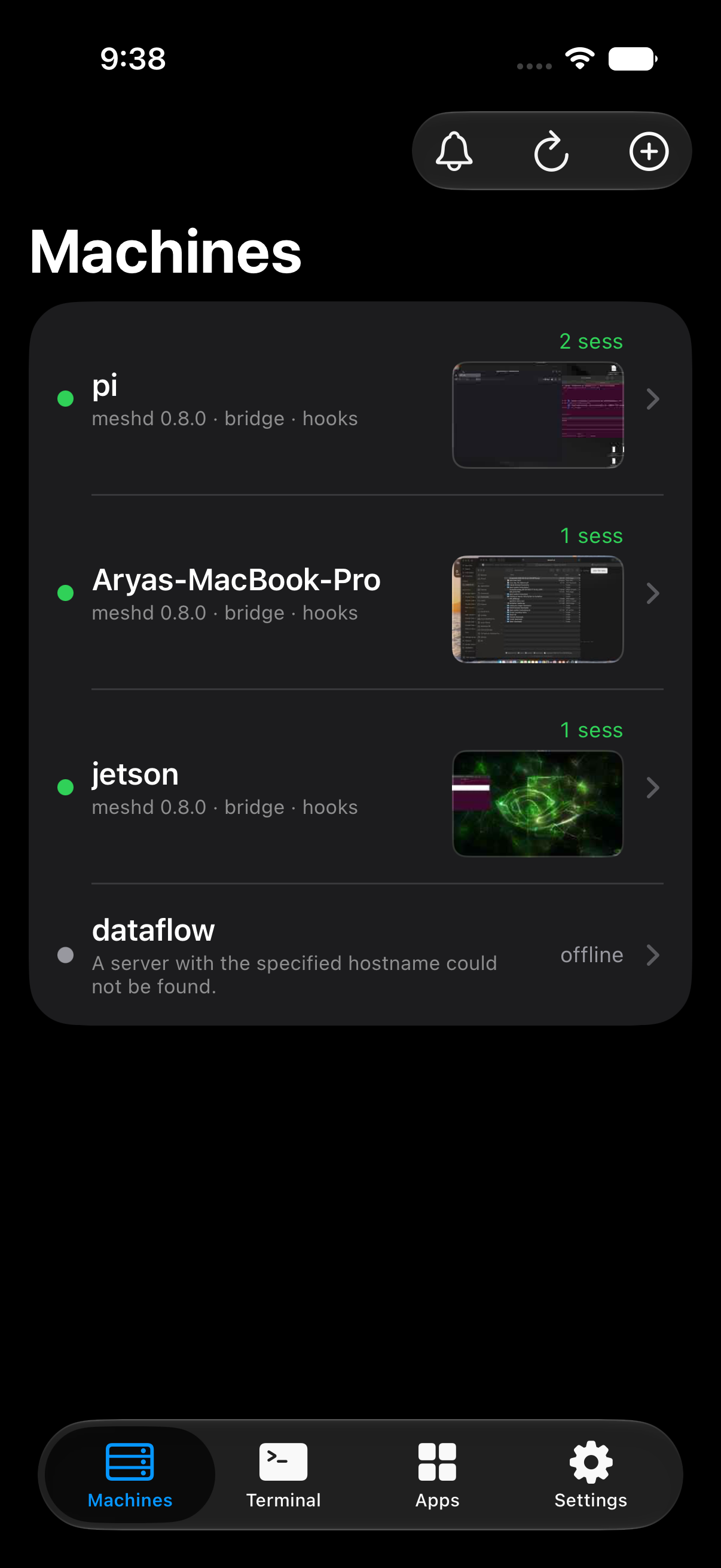
mesh pairIt prints a QR code and an eight-character code. On the phone, open LeSearch AI → Machines → Pair a machine and point the camera at the QR (or type the address and the code). The phone shows the machine's name and the code it read; check they match what the terminal printed, tap Pair. The row turns green when the phone reaches the daemon.
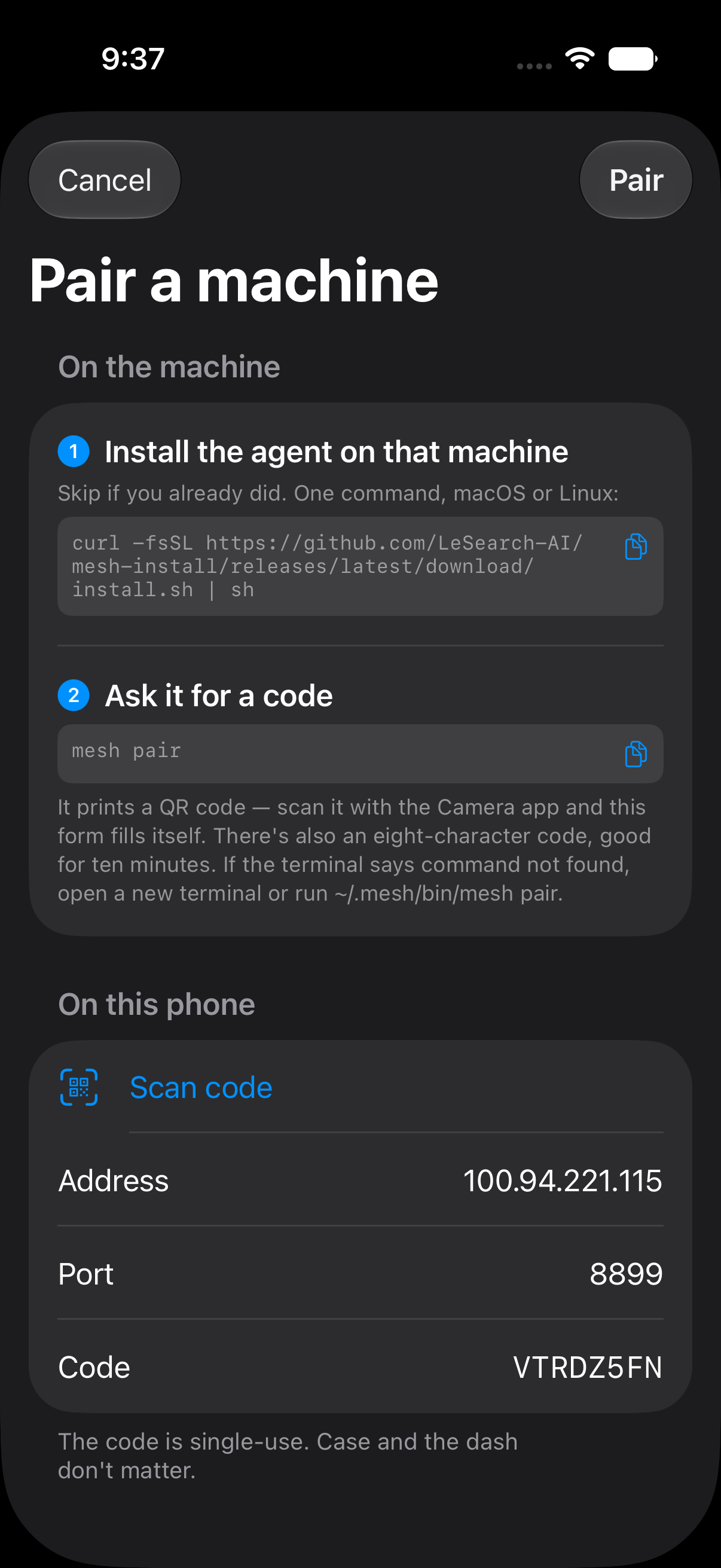
Pairing is the whole account model: the machine mints a token for that phone, the phone keeps it in its Keychain, and nothing of ours is in between. Pair as many machines as you like; each gets its own row.
4. Run an agent and get the first buzz
Wire the agent alerts once per machine (Claude Code today; Codex and Antigravity print their one-line config):
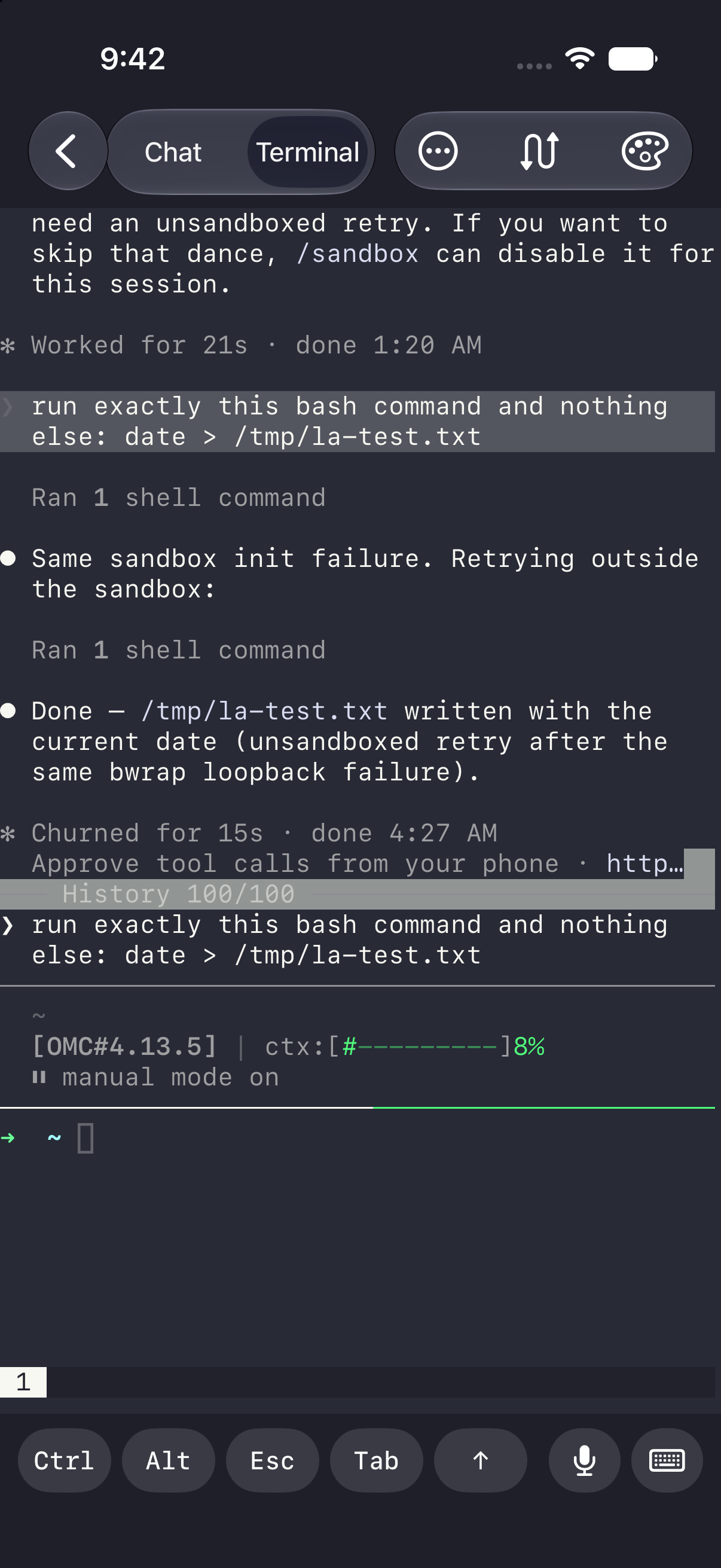
mesh hooks installNow start an agent from the phone — Terminal → + → pick claude (or any installed agent) and a folder — or from the machine as you normally would inside a mesh new session. Give it a task that will make it ask you something (rm a scratch file, push a branch). When it stops:
- the phone shows a Needs you banner and the watch buzzes;
- the session's Chat view shows the question, and if the agent presented a menu (Claude Code's numbered permission list, a trust-this-folder prompt) the options are buttons;
- tap Continue, pick an option, or type back. The agent carries on.
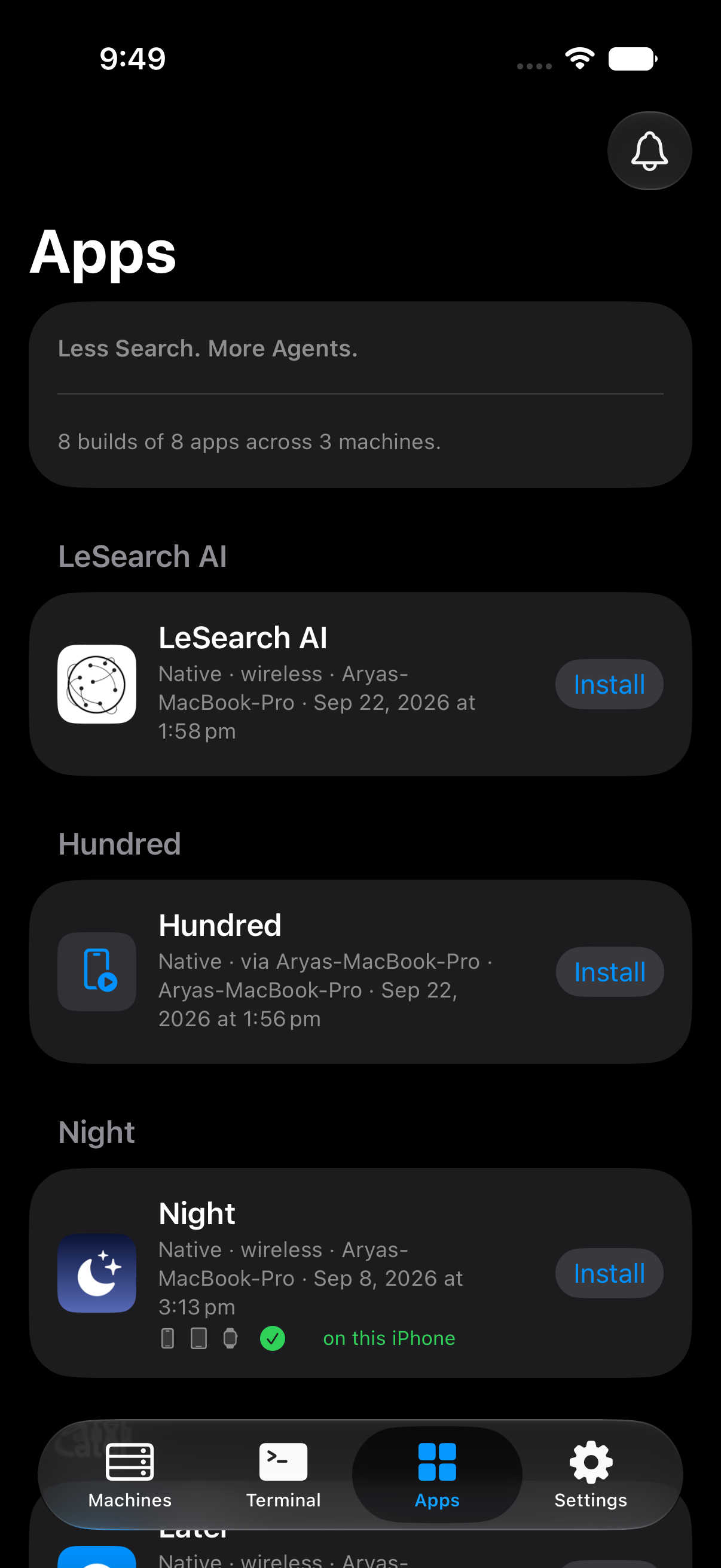
That is the loop everything else serves. From here: each machine's row shows its live screen — open it for the trackpad, the machine's own keyboard (⌘⌥⌃⇧ on a Mac, Ctrl Alt Super on Linux) and its launcher; the Apps tab lists apps your agents built and lets you install them; the bell in every tab is alerts, usage and the event log.
5. Report a problem, and get a reply
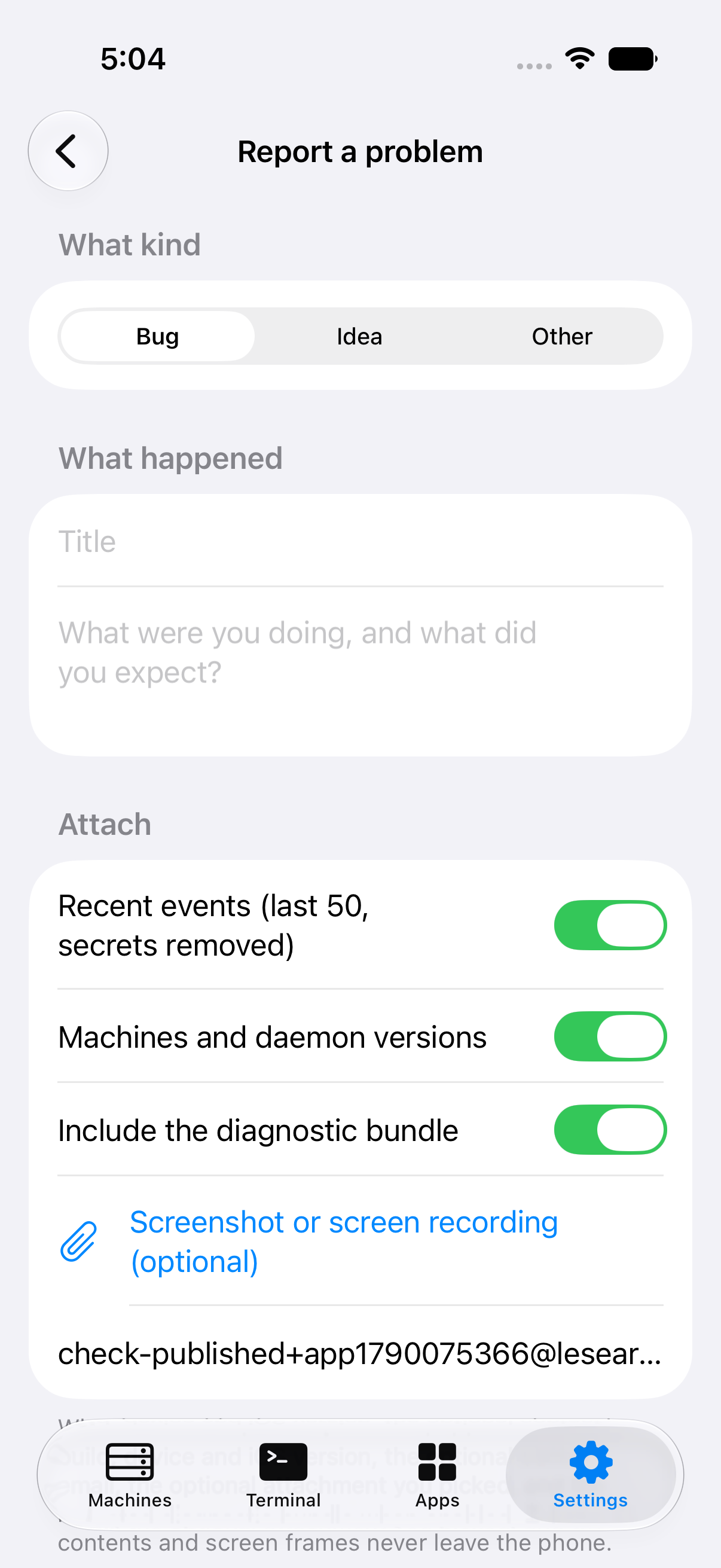
Settings → Report a problem. Pick bug / idea / other, give it a title and say what happened. Attach a screenshot or screen recording only if you pick one yourself. The diagnostic bundle (app build, machines and daemon versions, recent event titles, the last error) is redacted on the phone — anything shaped like a key or token is replaced by its kind — and you can read it before it goes. Send to LeSearch AI is one explicit tap; what leaves the phone is listed right above the button.
Sent reports become public issues labeled from-users at https://github.com/LeSearch-AI/mesh/issues — deduplicated, with your e-mail hashed, never copied. The app shows you a reference; that reference is on the issue.
6. Account — optional, only so we can reply
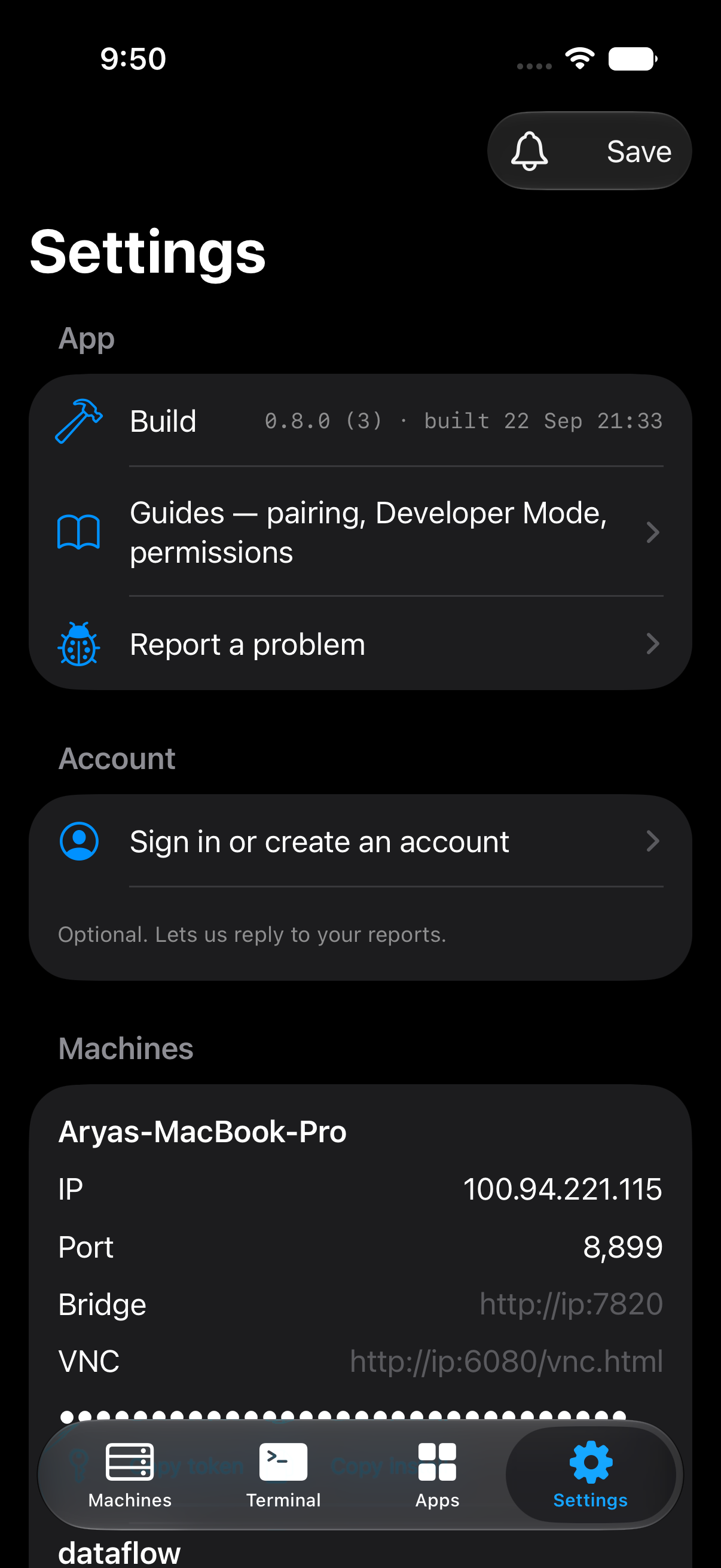
Settings → Account lets you create an account with an e-mail and a password so we can reply to your reports. It is used for nothing else: no login ever gates a machine, nothing above needed it, and you can sign out any time.
What to read next
- The product, feature by feature, with the code that implements each
- Design system and component map
- Privacy — exactly what leaves your devices, and when
- Guides inside the app (Settings → Guides): Developer Mode, Mac permissions, Linux desktops, running an agent overnight.